Step-by-Step
- 1
Install Countdawns from the Google Play Store
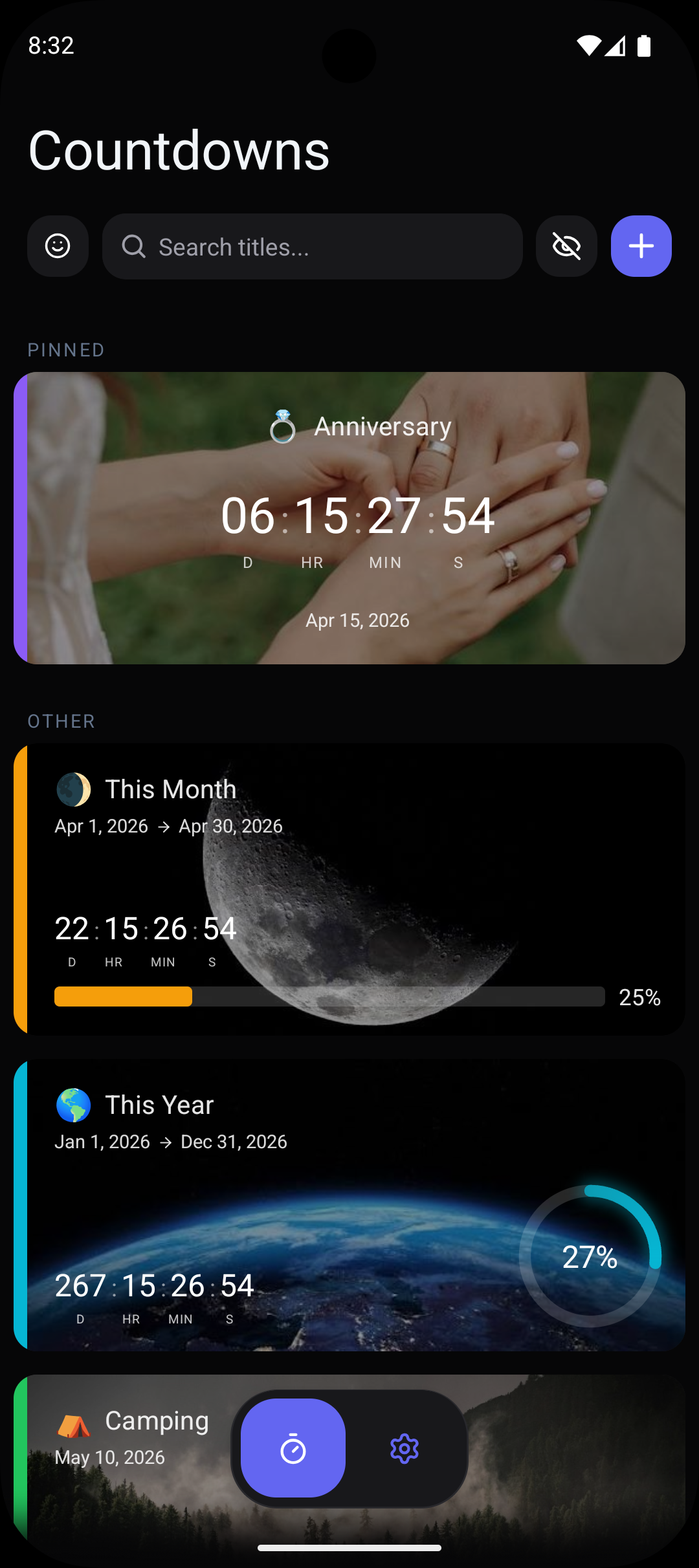
Download and install the Countdawns app from the Google Play Store. Open the app and create at least one countdown event by tapping the plus button, entering your event name, and selecting the target date and time.
- 2
Long-press on your Android home screen
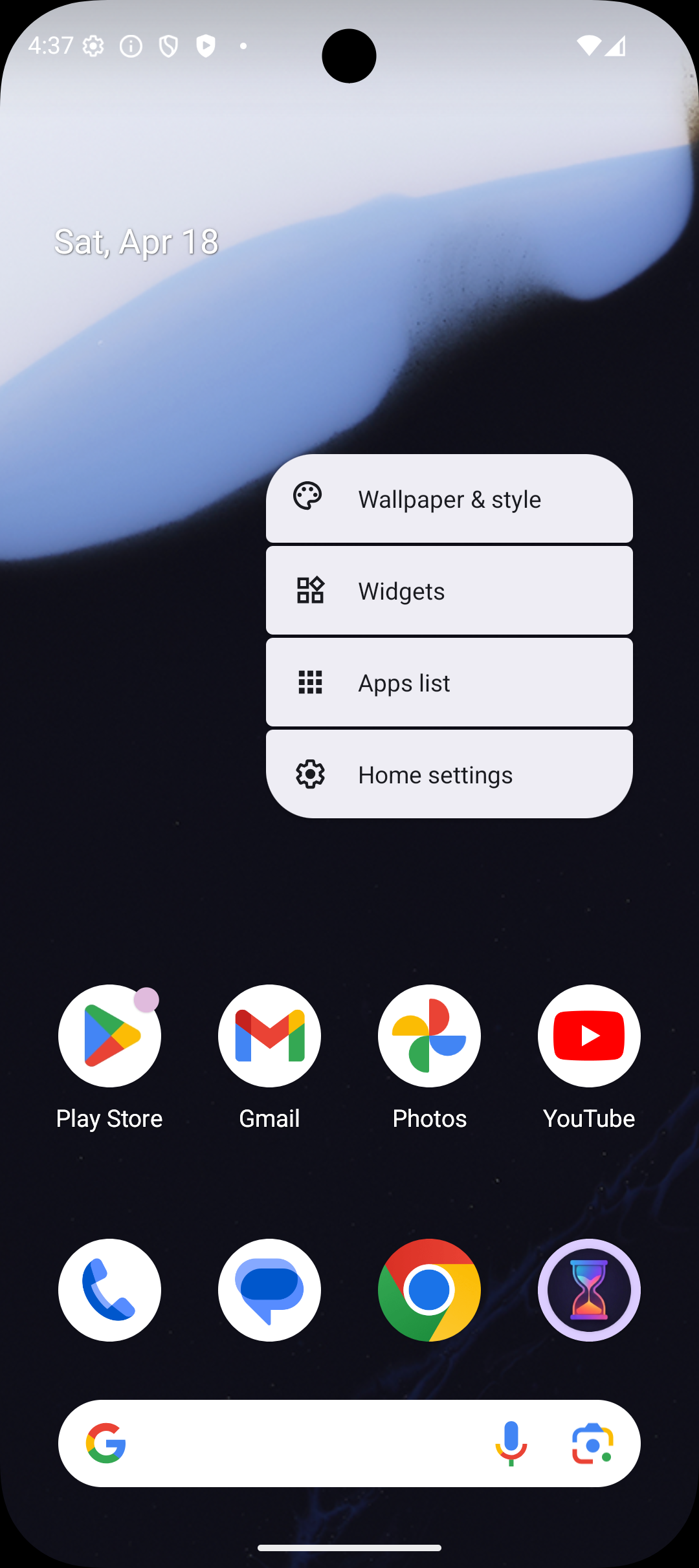
Navigate to your Android home screen and press and hold on any empty space. A menu will appear with options including Wallpapers, Widgets, and Settings. Tap on Widgets to open the widget picker.
- 3
Find the Countdawns widget
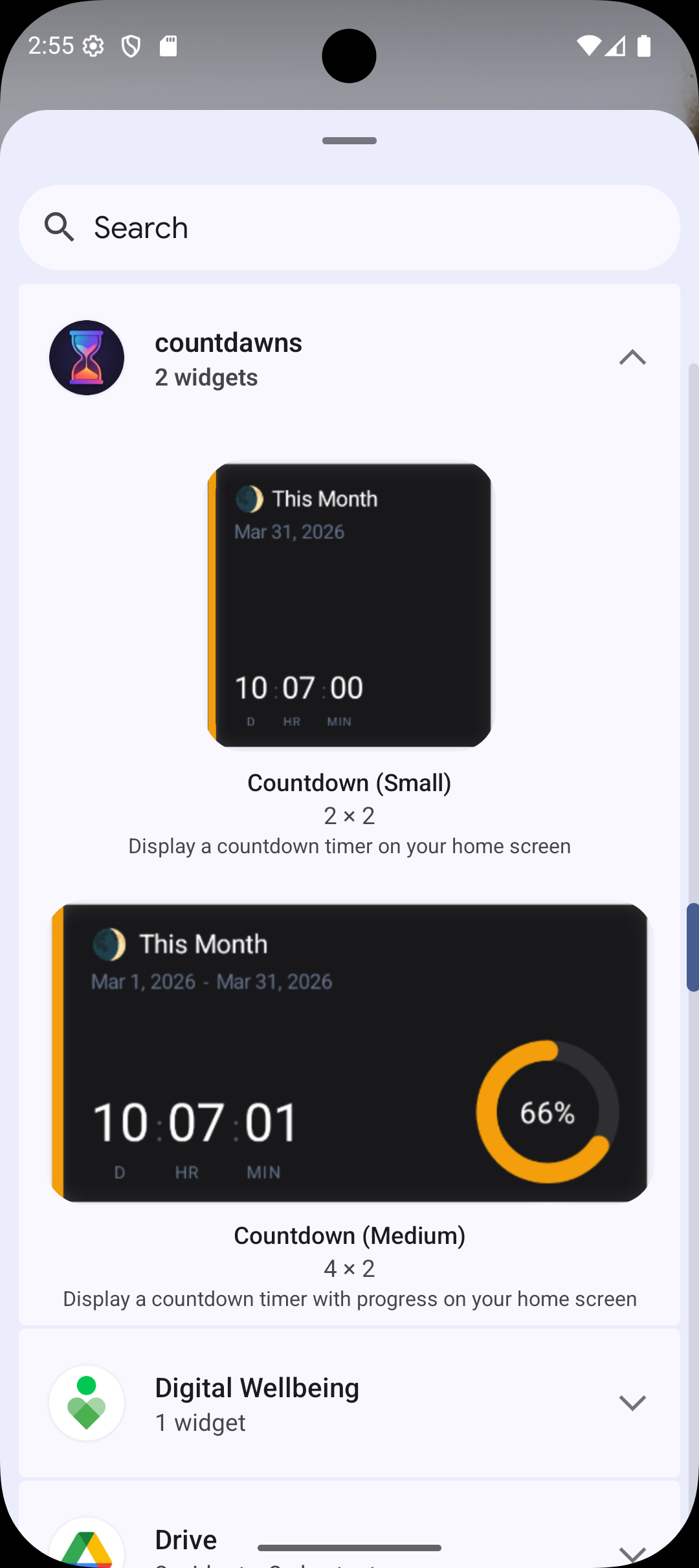
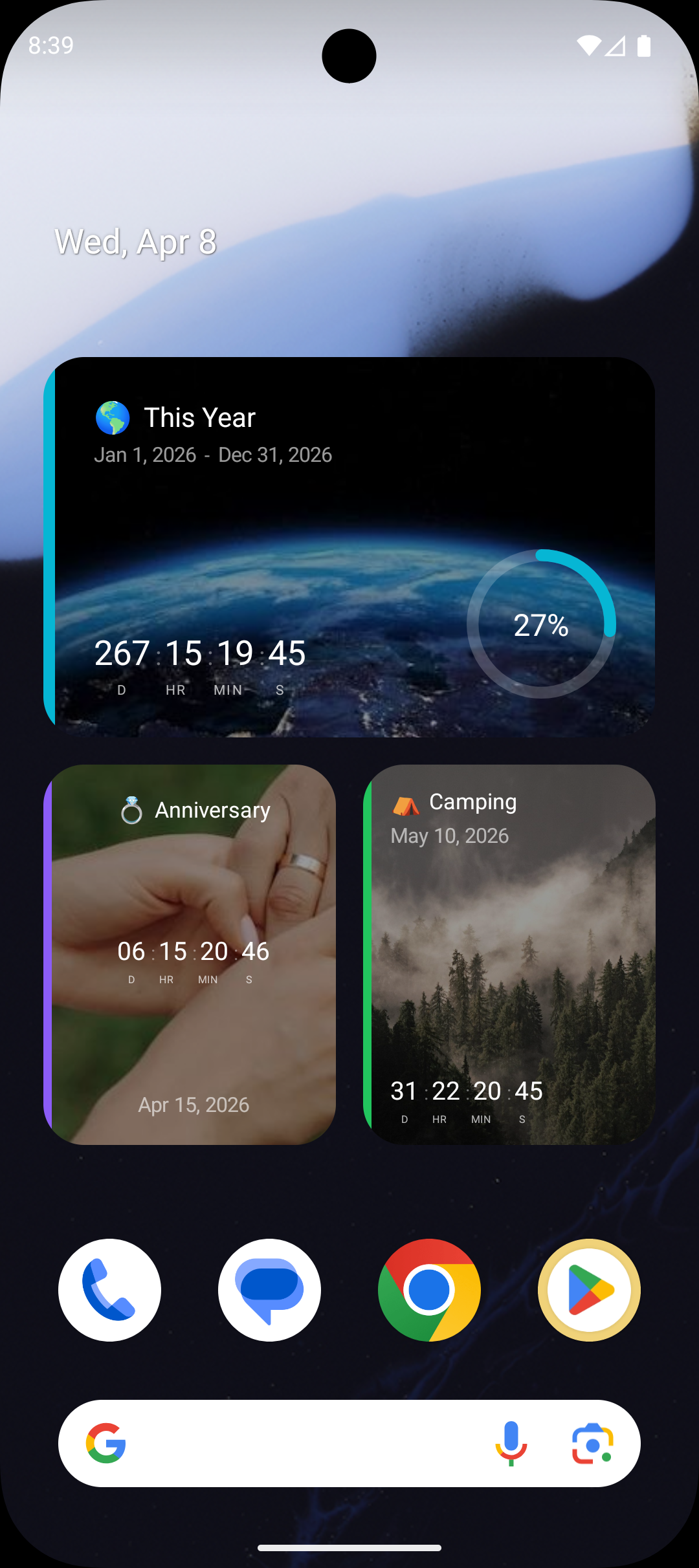
Scroll through the widget list or use the search bar to find Countdawns. You will see two widget size options: a compact 2x2 widget and a wider 4x2 widget. The 2x2 is great for fitting alongside other widgets, while the 4x2 gives you more room for event details.
- 4
Drag the widget to your home screen
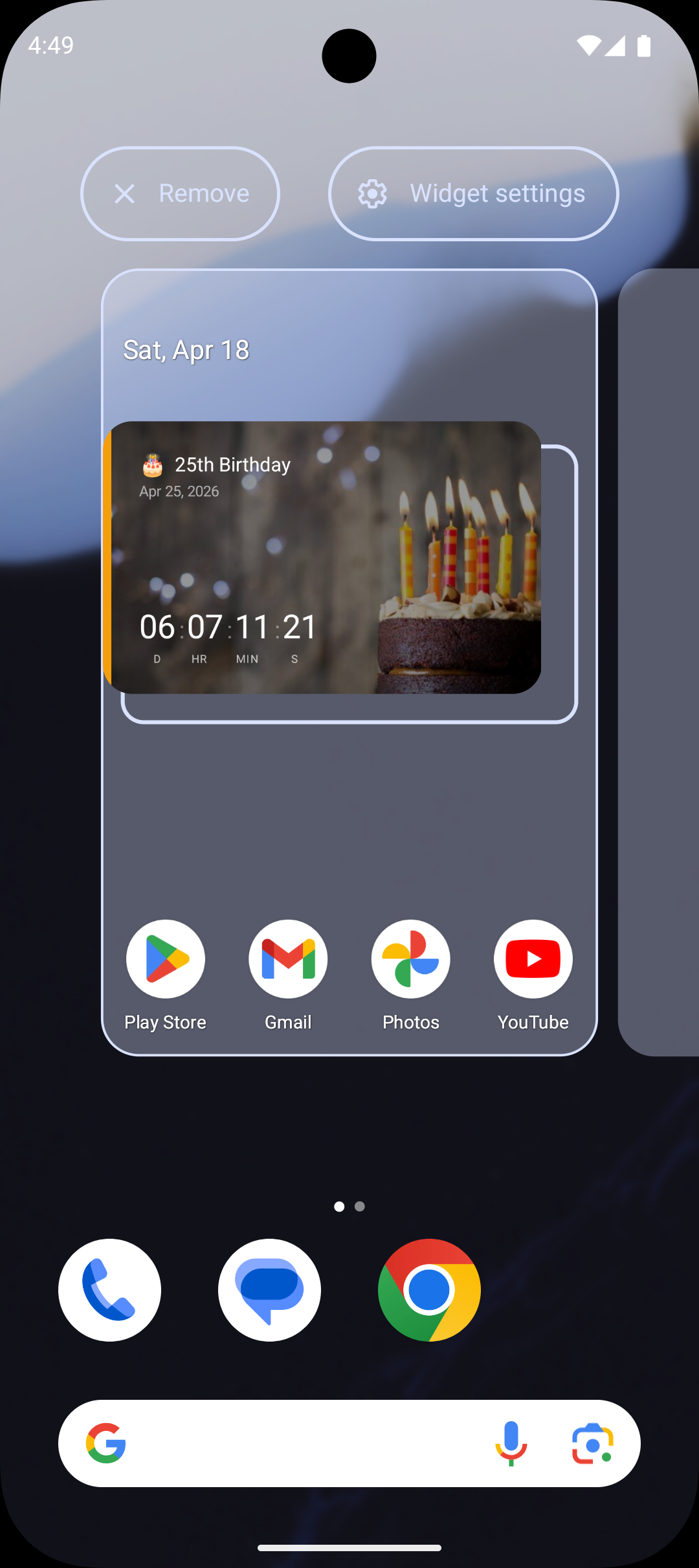
Press and hold the widget size you want, then drag it to your desired position on the home screen. Release your finger to place it. If you have multiple home screen pages, you can drag it to whichever page you prefer.
- 5
Select which countdown to display
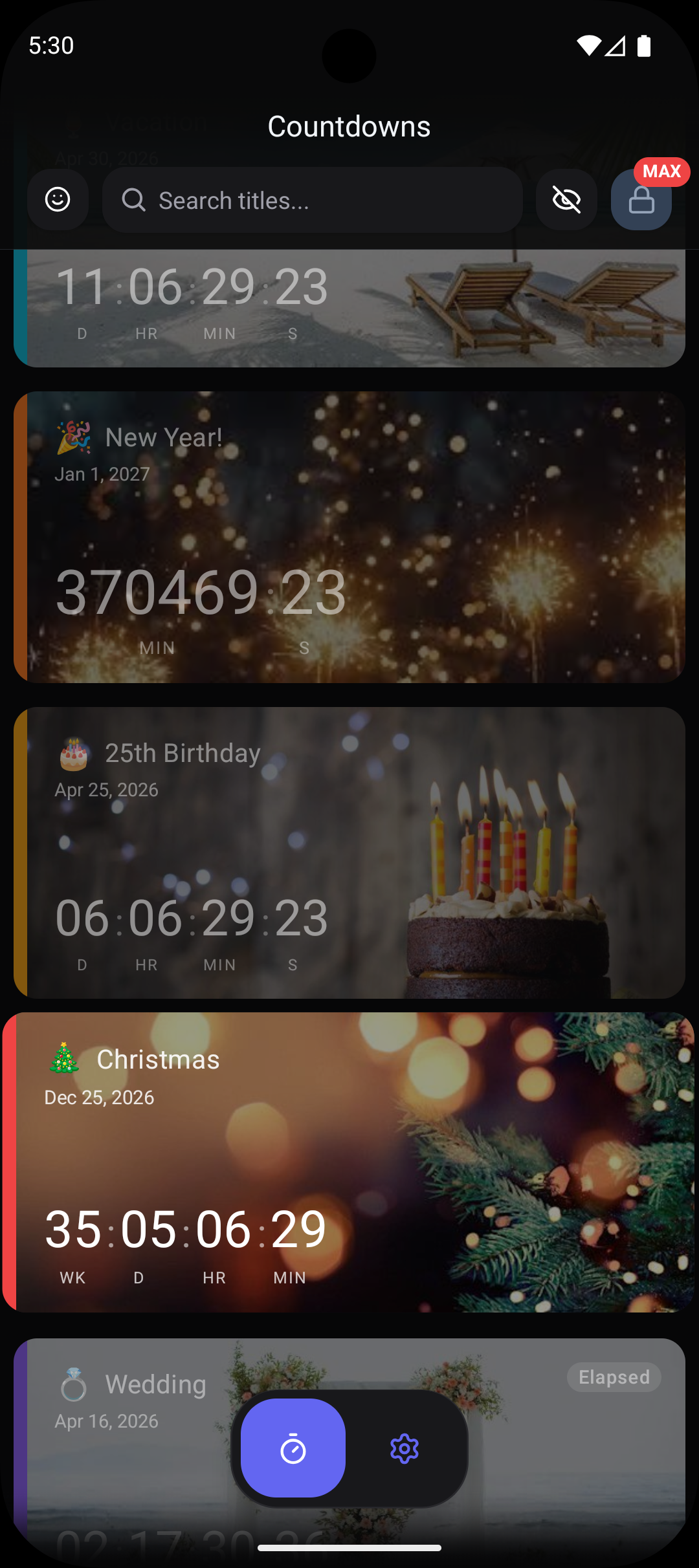
After placing the widget, a configuration screen will appear showing your available countdowns. Tap the countdown you want this widget to display. The widget will immediately start showing the countdown on your home screen.
- 6
Resize and reposition as needed
You can resize the widget by long-pressing it and dragging the edges. Reposition it by pressing and holding, then dragging to a new spot. The widget will automatically update throughout the day to show the current time remaining.
Pro Tips
- ›Use the 2x2 widget for a clean, compact countdown and the 4x2 widget when you want to see more event details at a glance.
- ›You can add multiple countdown widgets to the same home screen — each one can display a different countdown event.
- ›If the widget stops updating, try removing it and re-adding it. This can happen occasionally after system updates.
- ›Create a dedicated home screen page just for your countdowns by swiping to a blank page and adding multiple widgets.
- ›Long-press the widget and select the configure option if you want to change which countdown it displays later.
Frequently Asked Questions
Why is my countdown widget not showing on my home screen?+
Can I have multiple countdown widgets on the same screen?+
Does the widget drain my battery?+
Related Guides & Resources
Learn how to customize your countdown card designs, colors, and styles in Countdawns. 11 designs and 12 accent colors. Step-by-step guide.
Never miss a birthday again. Track every birthday countdown on your Android home screen with widgets, reminders, and custom designs. Free download.