Step-by-Step
- 1
Open a countdown and navigate to progress settings
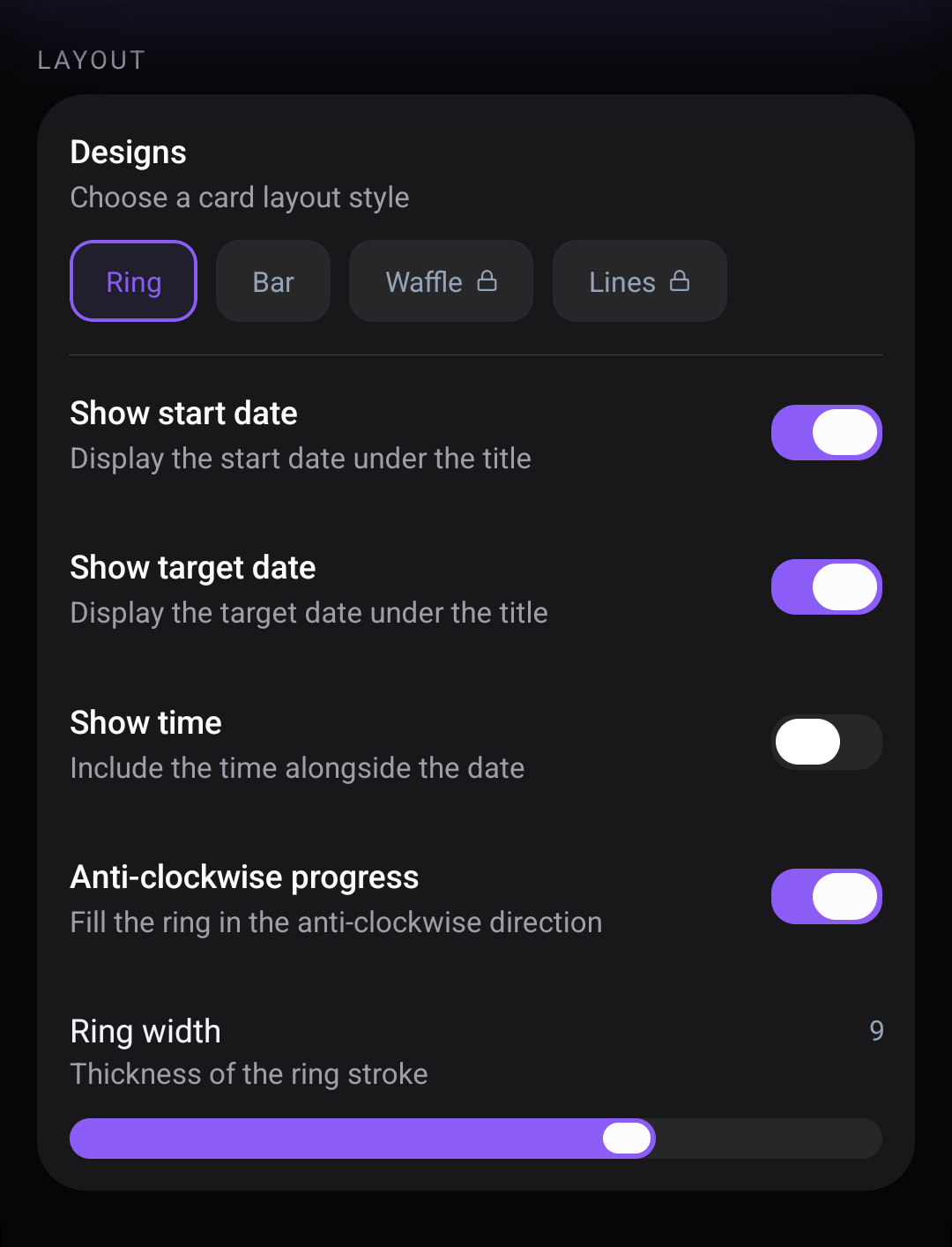
Launch Countdawns and tap on the countdown you want to add progress tracking to. Scroll down to the Progress section. If you are creating a new countdown, you will find progress options during the setup process.
- 2
Enable progress tracking
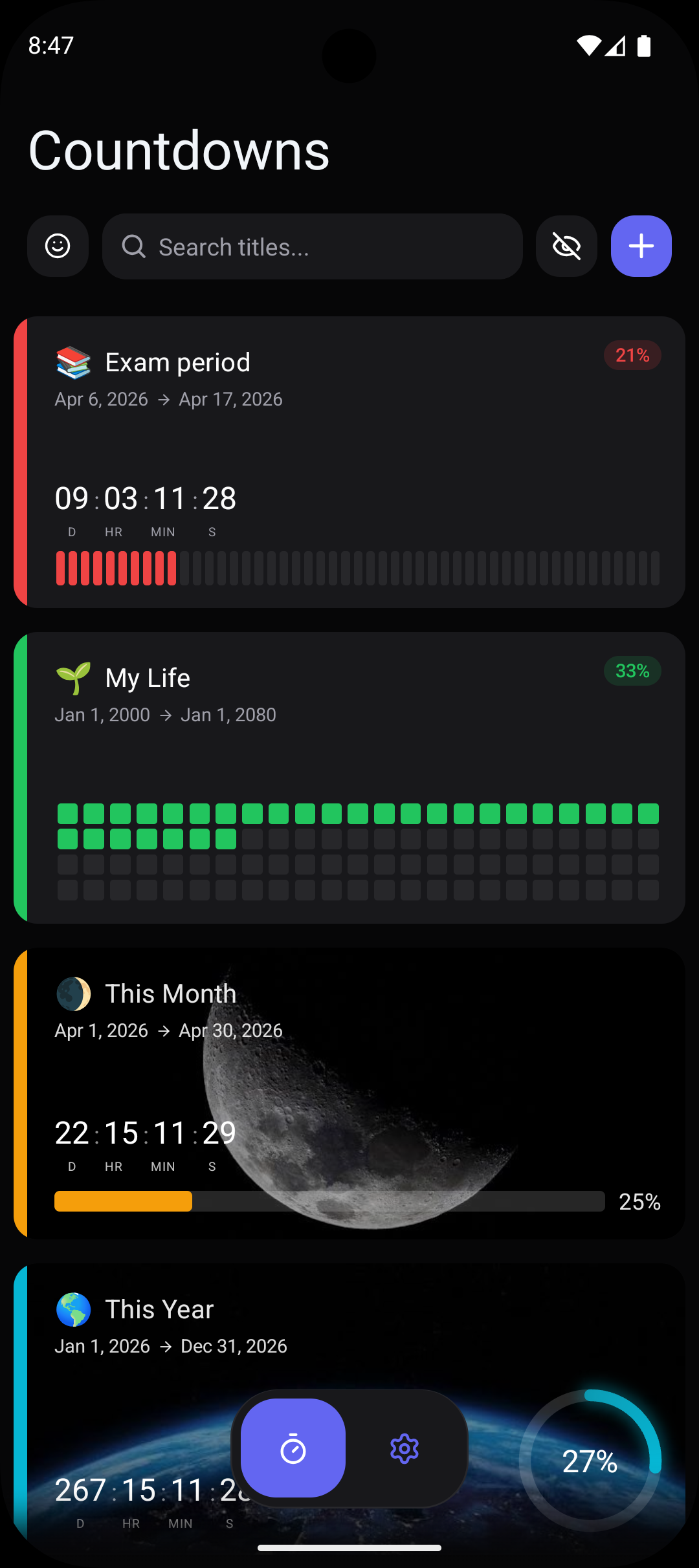
Toggle the progress tracking switch to on. This activates progress visualization for the selected countdown. You will immediately see a preview of the progress indicator based on how much time has elapsed since the countdown was created.
- 3
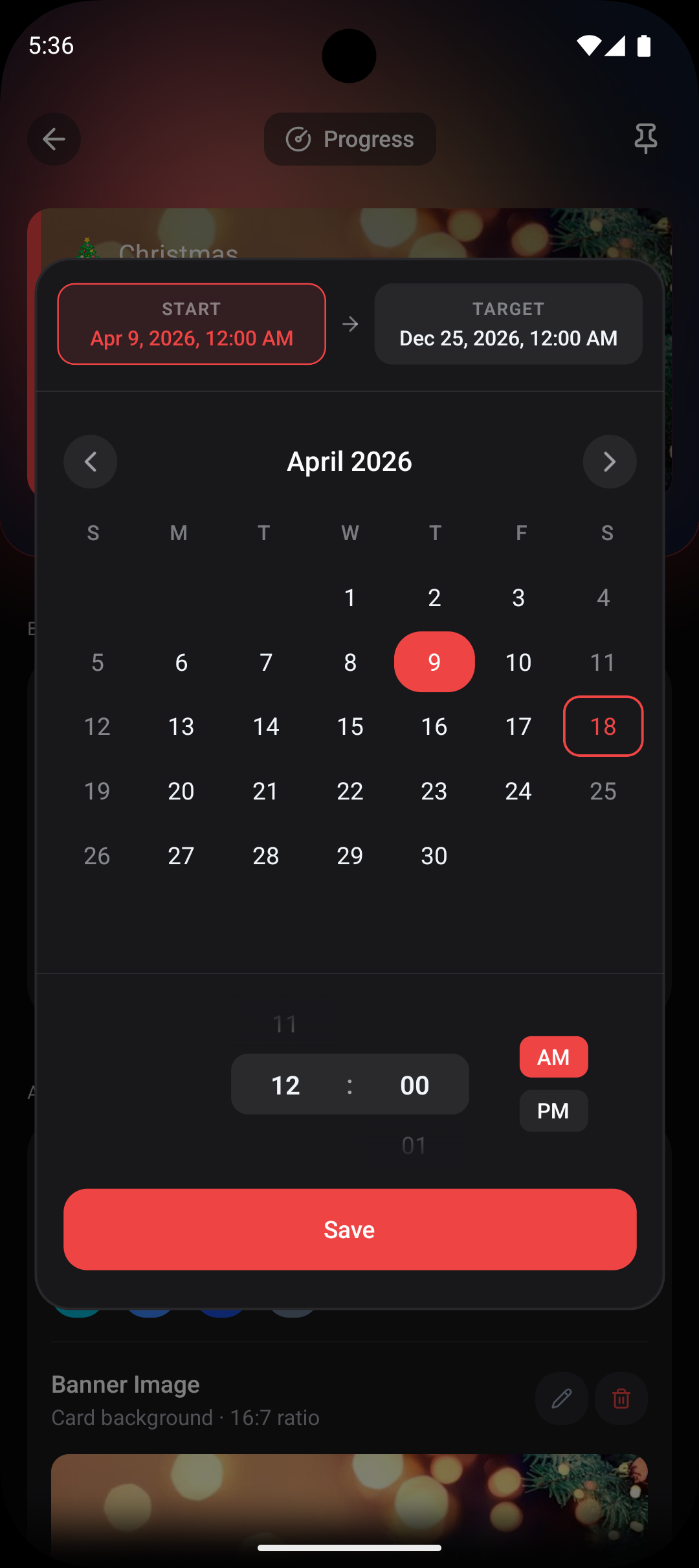
Set your progress start date
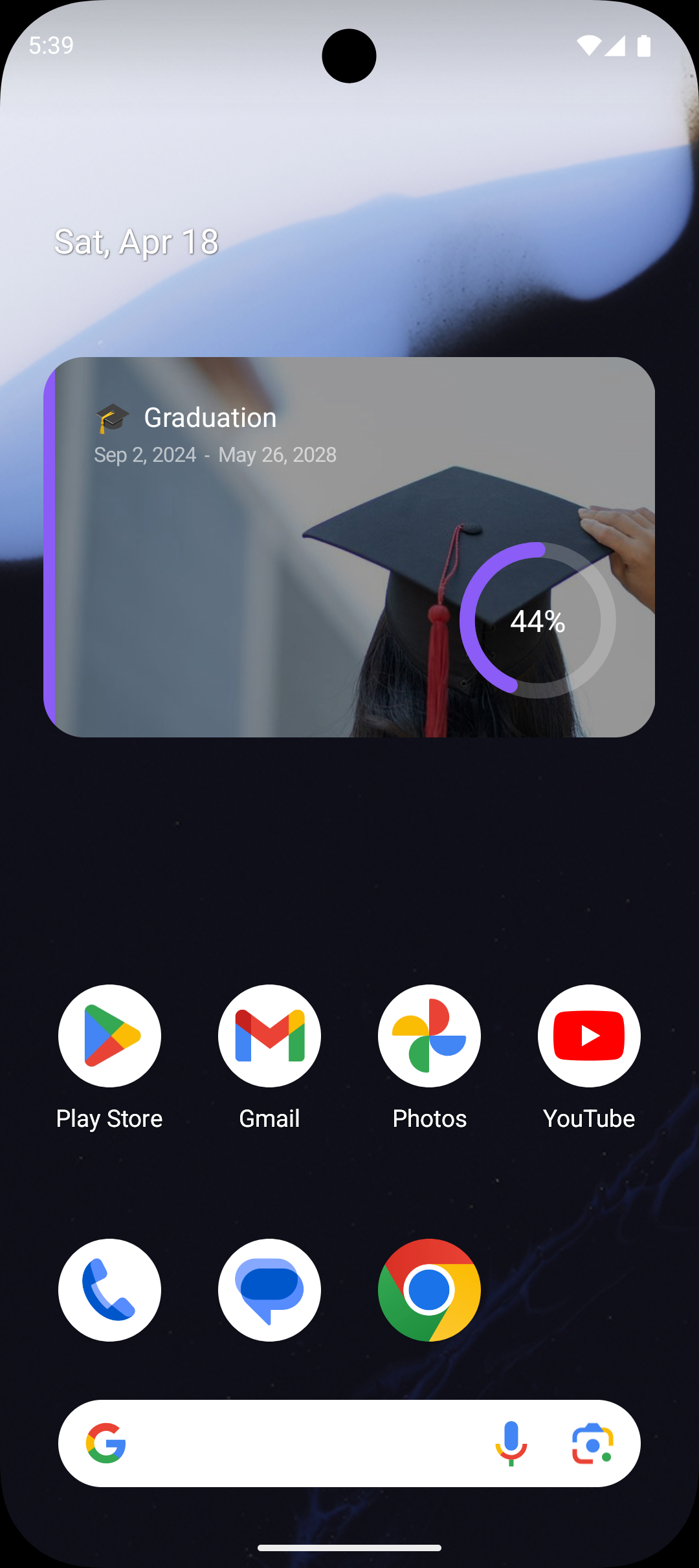
By default, progress is measured from when the countdown was created. However, you can set a custom start date for more accurate tracking. For example, set the first day of school as the start date for a graduation countdown, or the day you accepted a job offer as the start for a new job countdown.
- 4
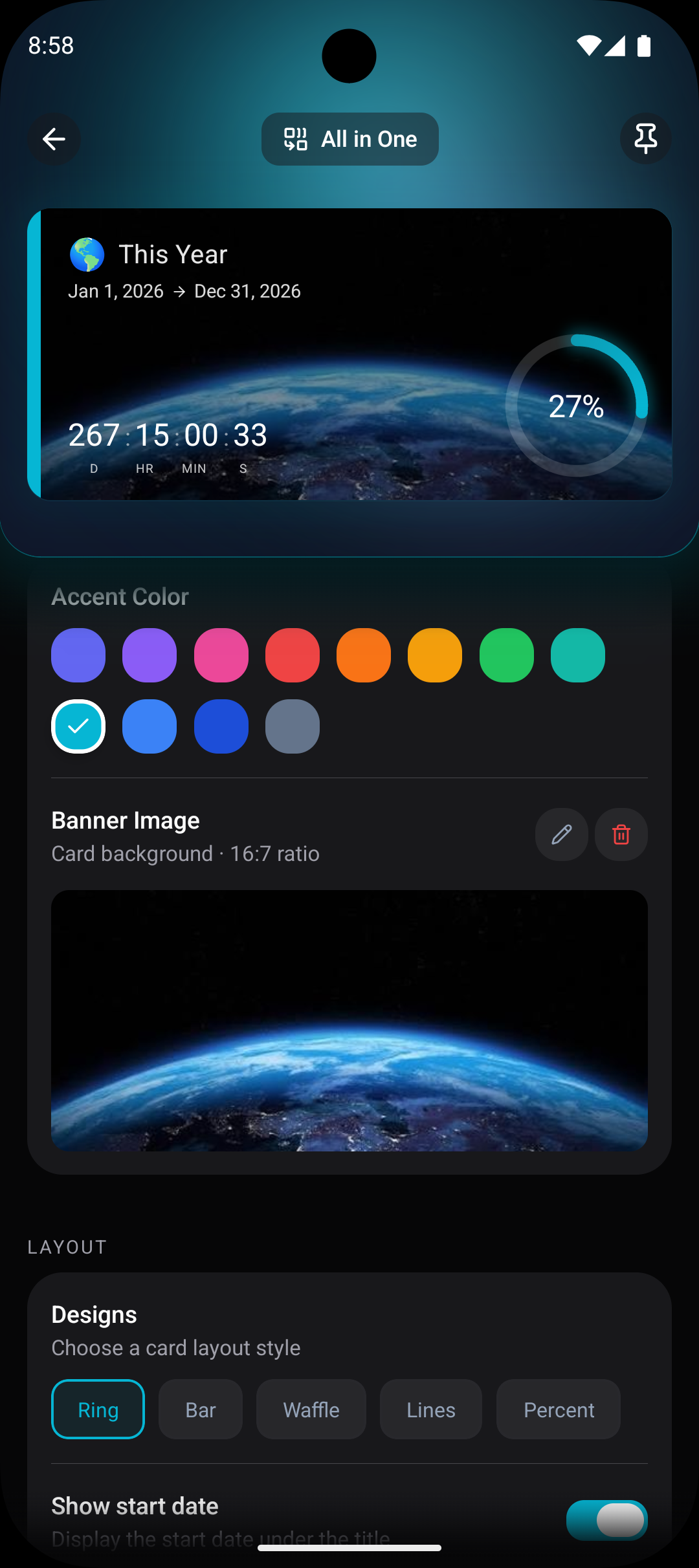
Choose your visualization style
Select from four progress visualization styles. Ring displays a circular progress indicator. Bar shows a horizontal progress bar. Waffle uses a grid-based visualization. Lines uses parallel line segments to represent progress. Try each one to see which style you prefer with your chosen card design.
- 5
Preview on your home screen widget
Save your changes and check your home screen widget. The progress indicator will appear on the widget, updating automatically as time passes. The 4x2 widget size typically displays progress indicators better due to the additional space.
Pro Tips
- ›Ring progress indicators work beautifully on 2x2 widgets and give a clean, modern look.
- ›Bar progress is the most intuitive for most people and works well when you want a quick visual sense of completion.
- ›Waffle charts are unique and visually interesting — they stand out compared to typical progress indicators.
- ›Set meaningful start dates rather than using the countdown creation date. A school year countdown should start on the first day of school, not the day you installed the app.
- ›Progress tracking is especially motivating for long-term countdowns like retirement, graduation, or pregnancy where the journey is as important as the destination.
Frequently Asked Questions
What is the difference between the four progress styles?+
Does progress tracking affect battery life?+
Can I use progress tracking without a widget?+
Related Guides & Resources
Learn how to customize your countdown card designs, colors, and styles in Countdawns. 11 designs and 12 accent colors. Step-by-step guide.
Count down to your retirement date on Android. See years, months, and days remaining with home screen widgets. Celebrate the milestone. Free.
Count down to graduation day on your Android phone. Track days until commencement with widgets, progress bars, and smart reminders. Free.