Step-by-Step
- 1
Open the countdown you want to add reminders to
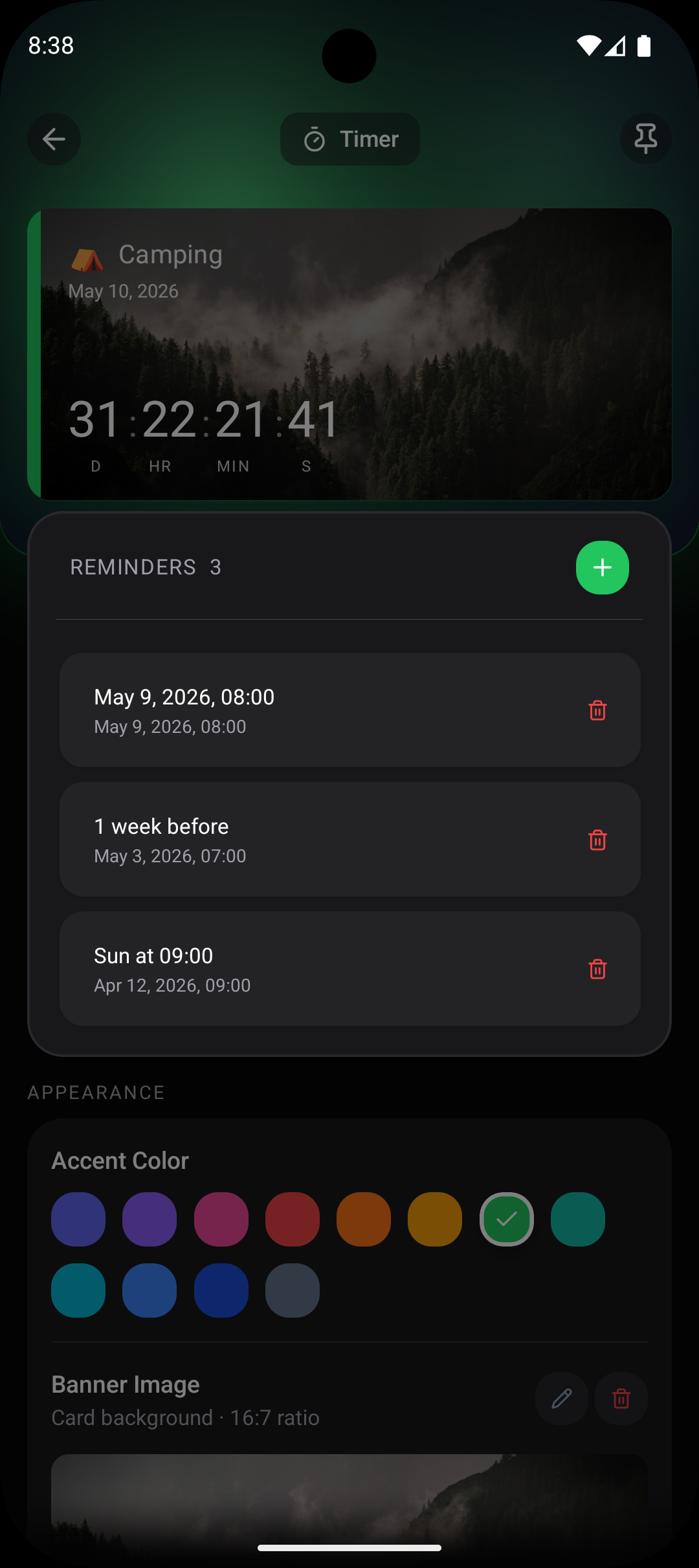
Launch Countdawns and tap on the countdown you want to configure reminders for. If you are creating a new countdown, you can add reminders during the creation process. Tap the Reminders section to see your reminder options.
- 2
Add a relative reminder
Relative reminders fire at a set interval before the event. Tap Add Reminder and select Relative. Choose the time interval: 1 month, 2 weeks, 1 week, 3 days, 1 day, or a custom number of days before the event. This is the most popular reminder type for countdowns.
- 3
Add a fixed-date reminder
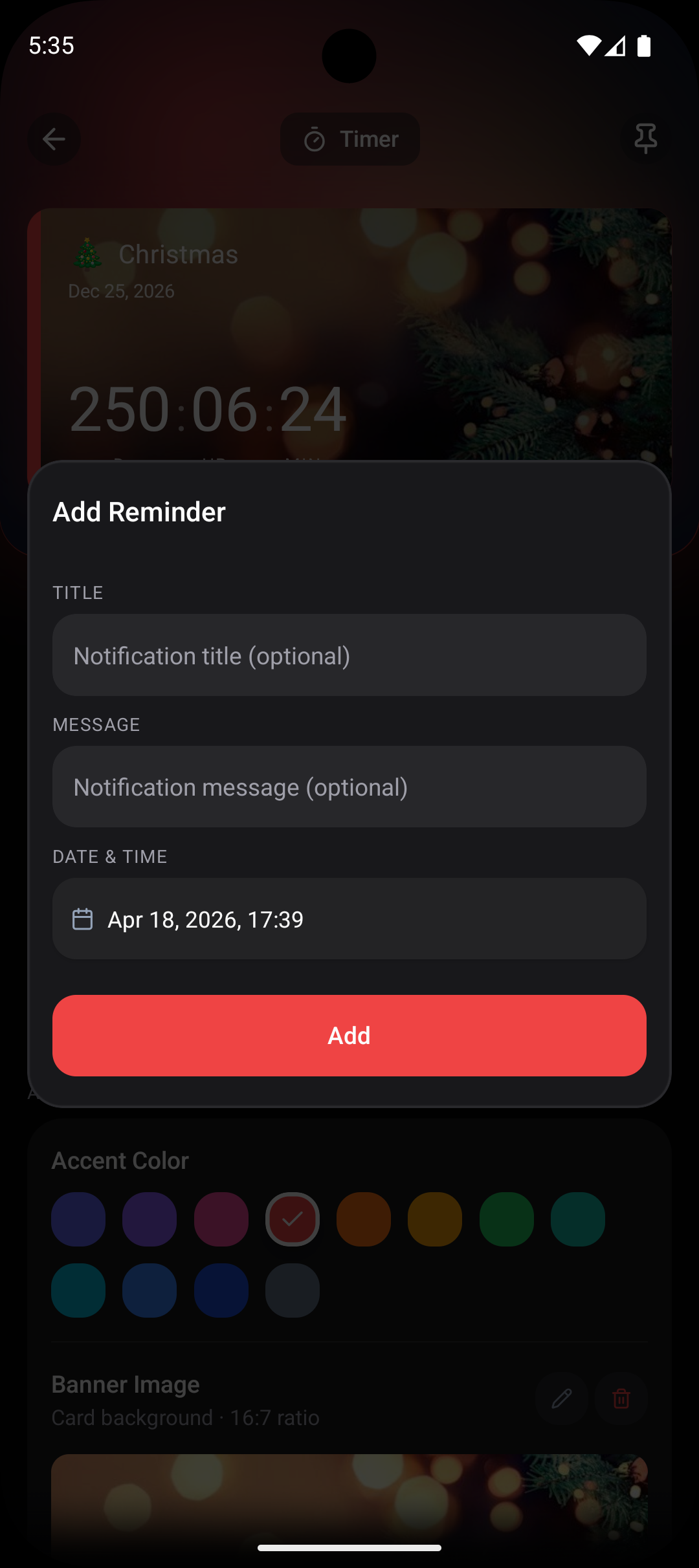
Fixed reminders fire on a specific date and time regardless of the countdown target. Tap Add Reminder and select Fixed. Pick the exact date and time you want to be notified. This is useful when you need a reminder tied to a specific calendar date rather than a relative interval.
- 4
Add a recurring reminder
Recurring reminders fire on a regular schedule. Tap Add Reminder and select Recurring. Choose the frequency (daily, weekly, or custom) and time. This is perfect for building habits around a countdown, like daily study reminders before an exam or weekly planning check-ins before a wedding.
- 5
Customize reminder notification text
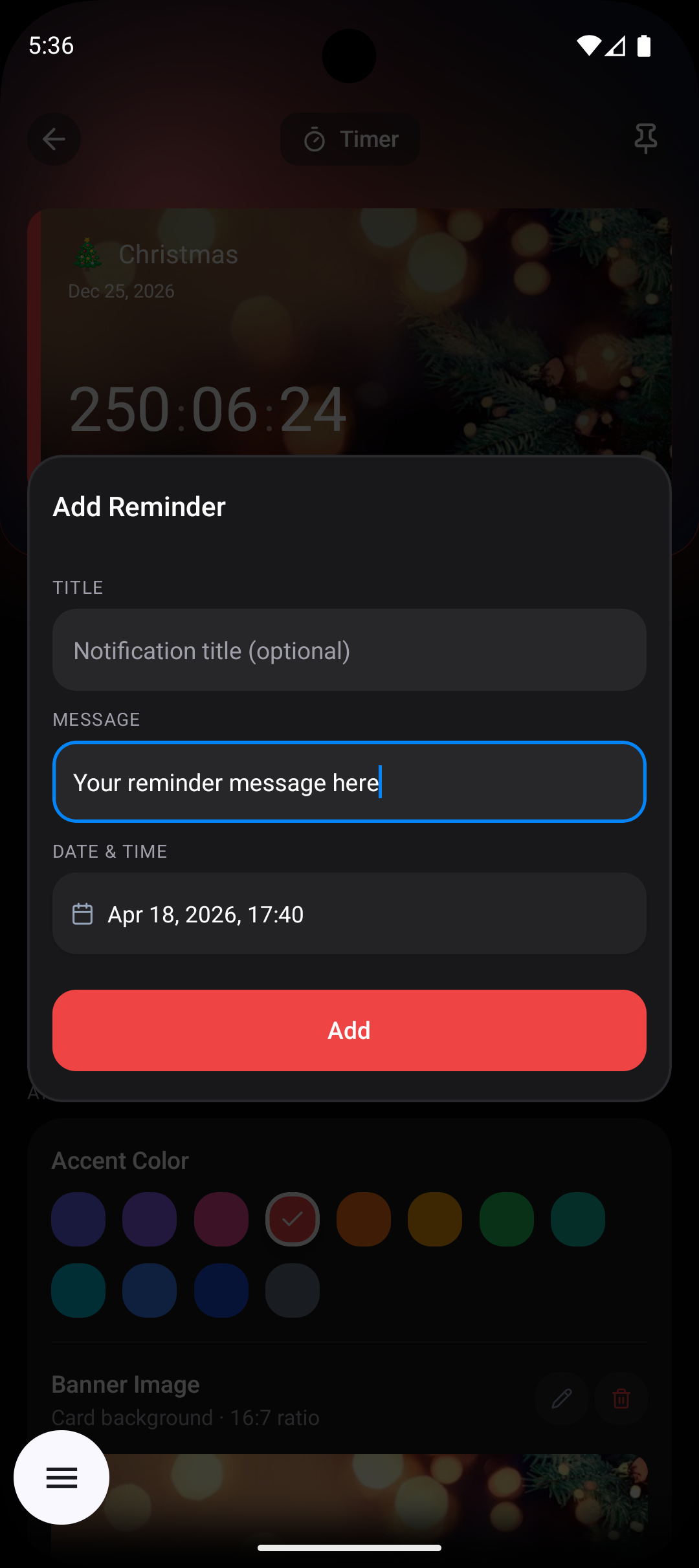
Each reminder can include a custom message that appears in the notification. Tap on the message field and type something specific, like 'Order the birthday cake today' or 'Start packing for vacation.' Custom messages make reminders actionable rather than generic.
- 6
Review and save your reminder schedule
Review all your configured reminders to make sure the schedule makes sense. You can see a list of all reminders with their dates and times. Reorder, edit, or delete any reminder as needed. Tap Save to activate all reminders.
Pro Tips
- ›Start with a relative reminder at 1 month and 1 week before major events to create a natural preparation cadence.
- ›Use recurring daily reminders for short-term intense preparation, like the week before an exam or the days before a move.
- ›Combine all three reminder types for important events: a relative reminder 1 month out, recurring weekly reminders, and a fixed reminder on a specific preparation date.
- ›Set morning reminders (around 8 AM) for preparation tasks and evening reminders for reflection or review.
- ›You can add as many reminders as you need to a single countdown — there is no limit on the number of reminders per event.
Frequently Asked Questions
What is the difference between relative and fixed reminders?+
Will reminders still work if the app is closed?+
Can I set a reminder for the exact moment of my event?+
Related Guides & Resources
Step-by-step guide to adding a countdown widget to your Android home screen. Works with Countdawns app. Takes under 2 minutes. Free.
Never miss a work deadline again. Track project deadlines on your Android home screen with countdown widgets and smart reminders. Free.
Count down to your wedding day on Android. Beautiful widgets, smart reminders for planning milestones, and 11 card designs. Download free.