Step-by-Step
- 1
Open an existing countdown or create a new one
Launch the Countdawns app and either tap on an existing countdown to edit it, or tap the plus button to create a new one. The design customization options are available both during creation and when editing an existing countdown.
- 2
Choose your card design
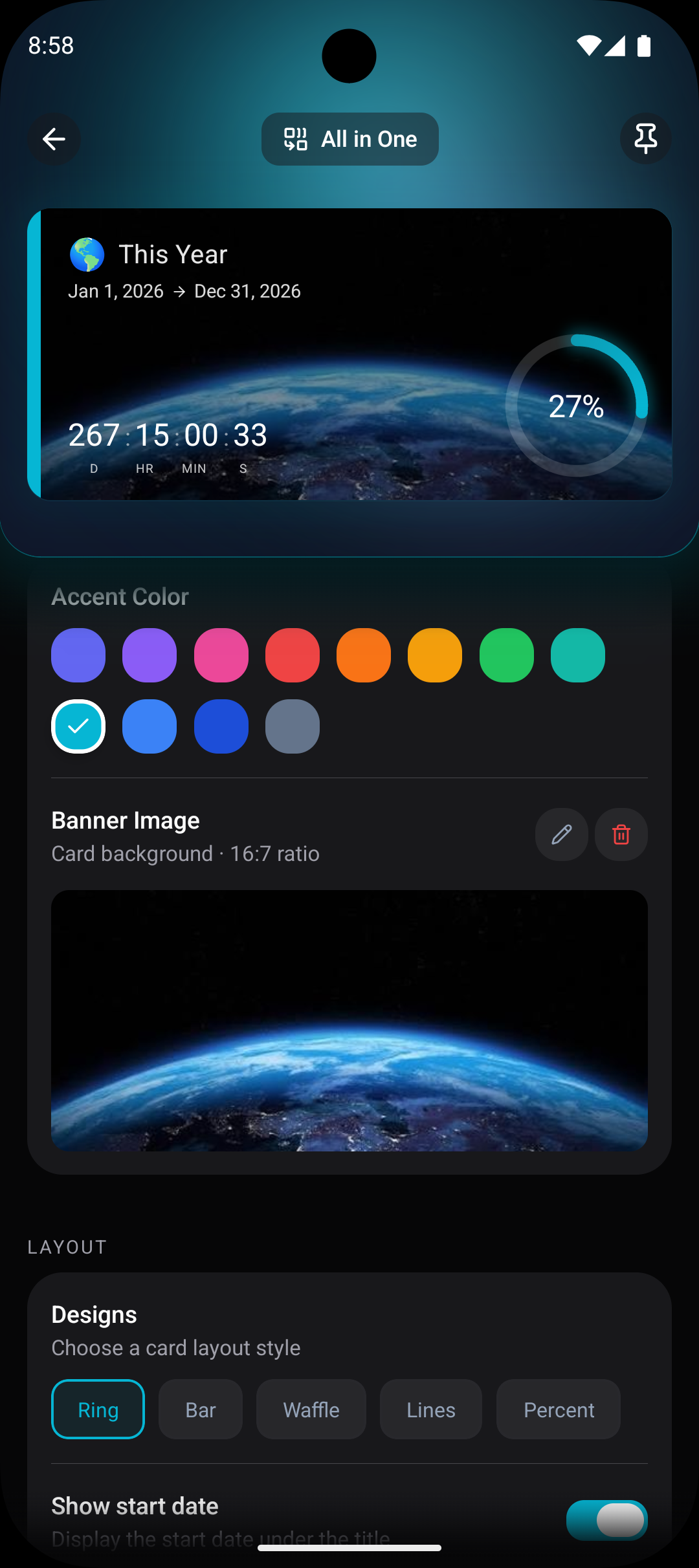
Scroll to the Design section and browse through all 11 available card designs. Each design offers a different visual style, from clean minimalist layouts to more detailed and decorative options. Tap on a design to preview how your countdown will look with it applied.
- 3
Select an accent color
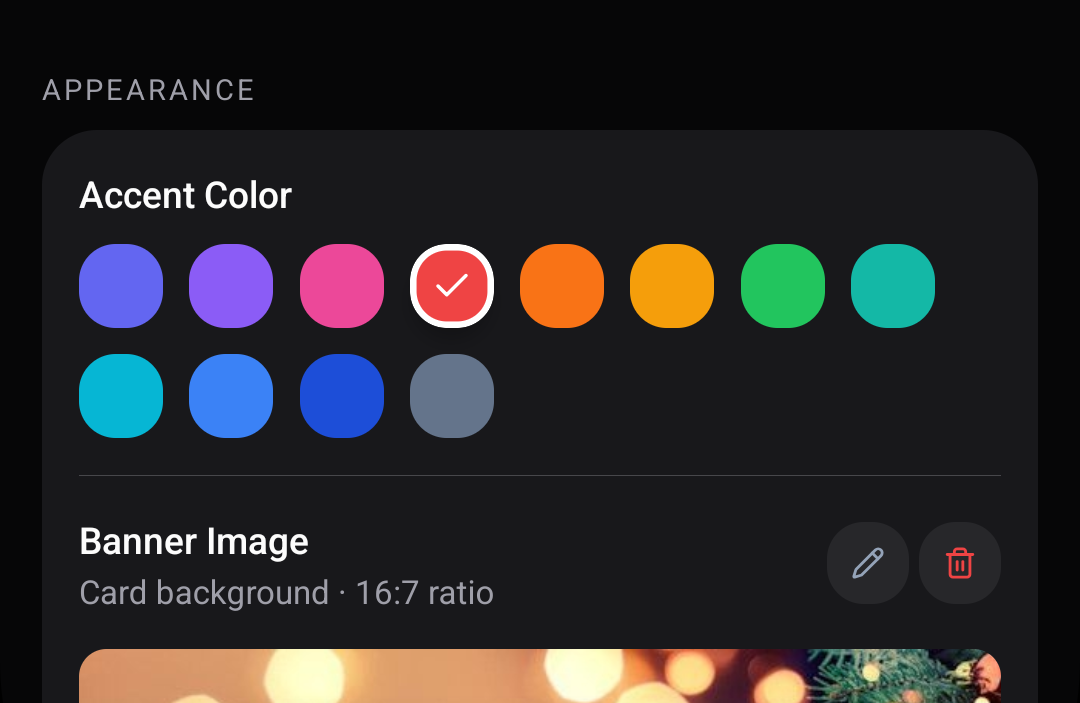
Below the card designs, you will find 12 accent color options. The accent color affects key visual elements of the card including text highlights, progress indicators, and decorative elements. Tap a color to see it applied to your selected card design in real time.
- 4
Configure time unit display
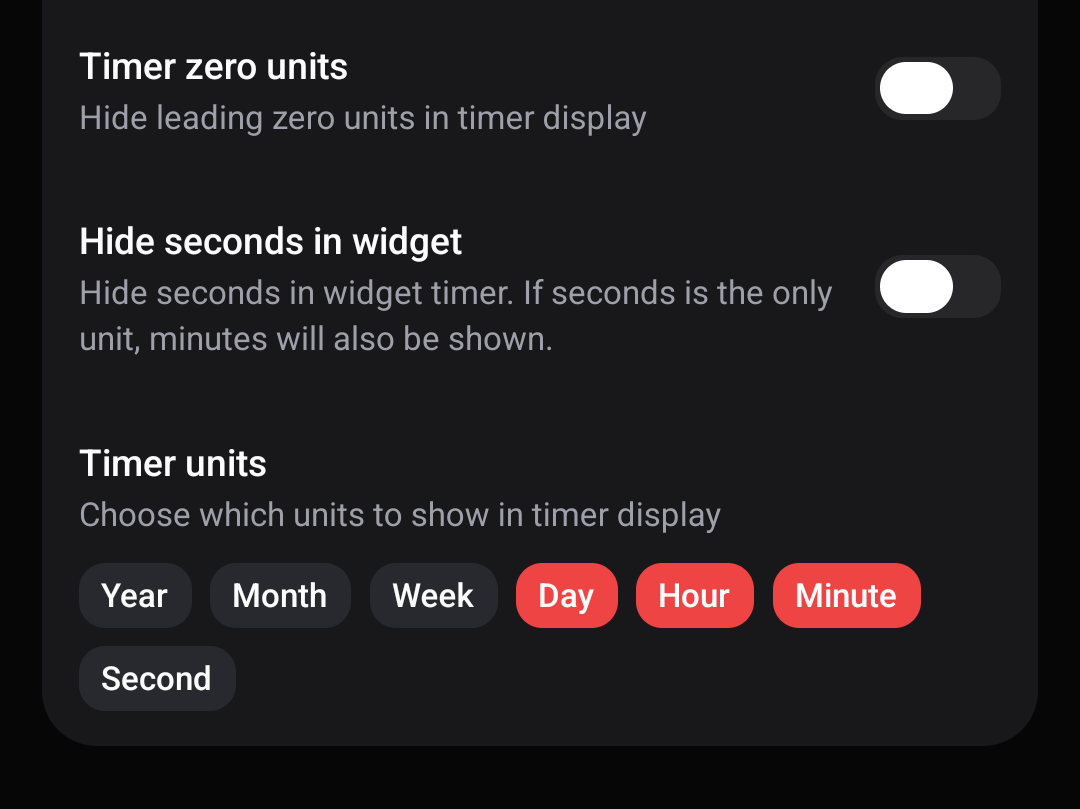
In the Display section, choose which time units your countdown should show. You can select any combination of years, months, weeks, days, hours, minutes, and seconds. This dramatically changes the look and feel of the countdown card.
- 5
Set up progress tracking style
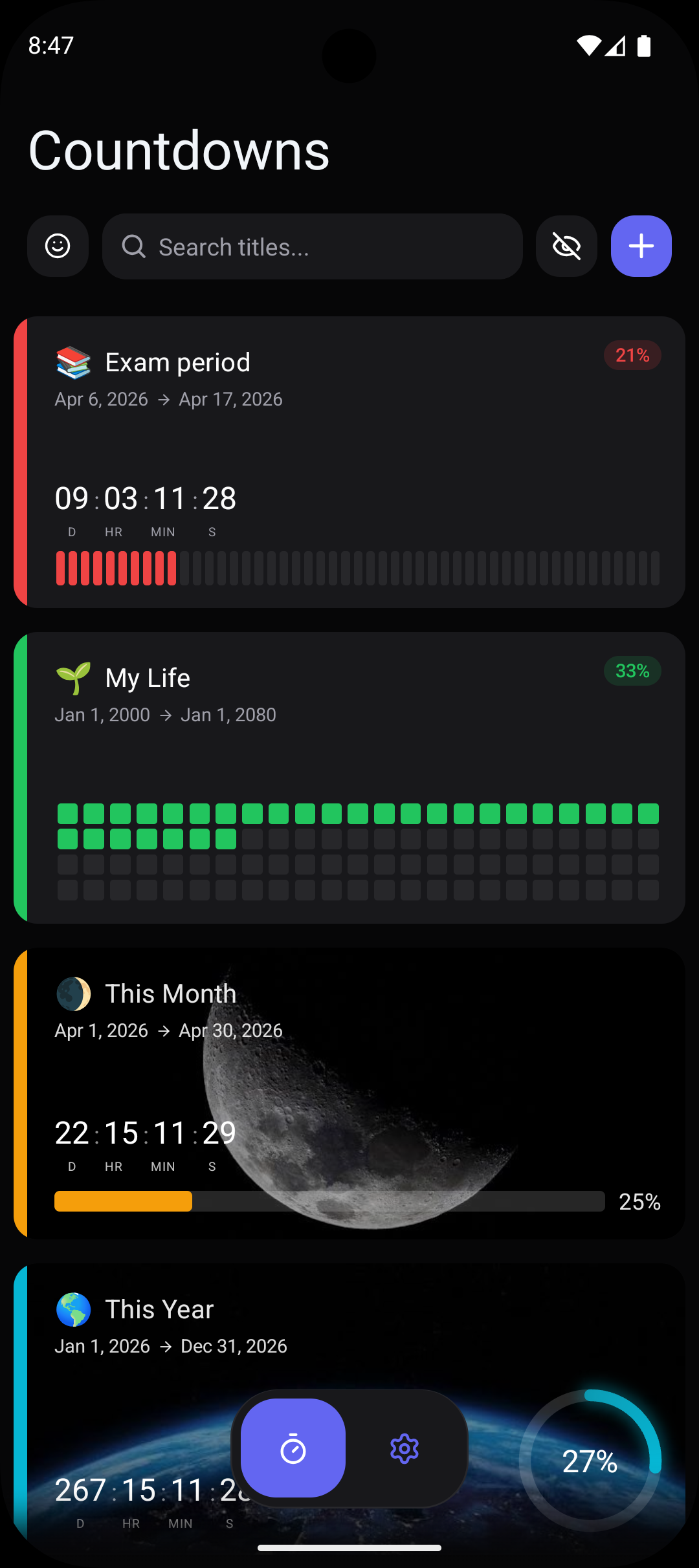
Enable progress tracking and choose from four visualization styles: ring, bar, waffle, or lines. Each style shows the same progress percentage in a different visual format. Pick the one that complements your chosen card design best.
- 6
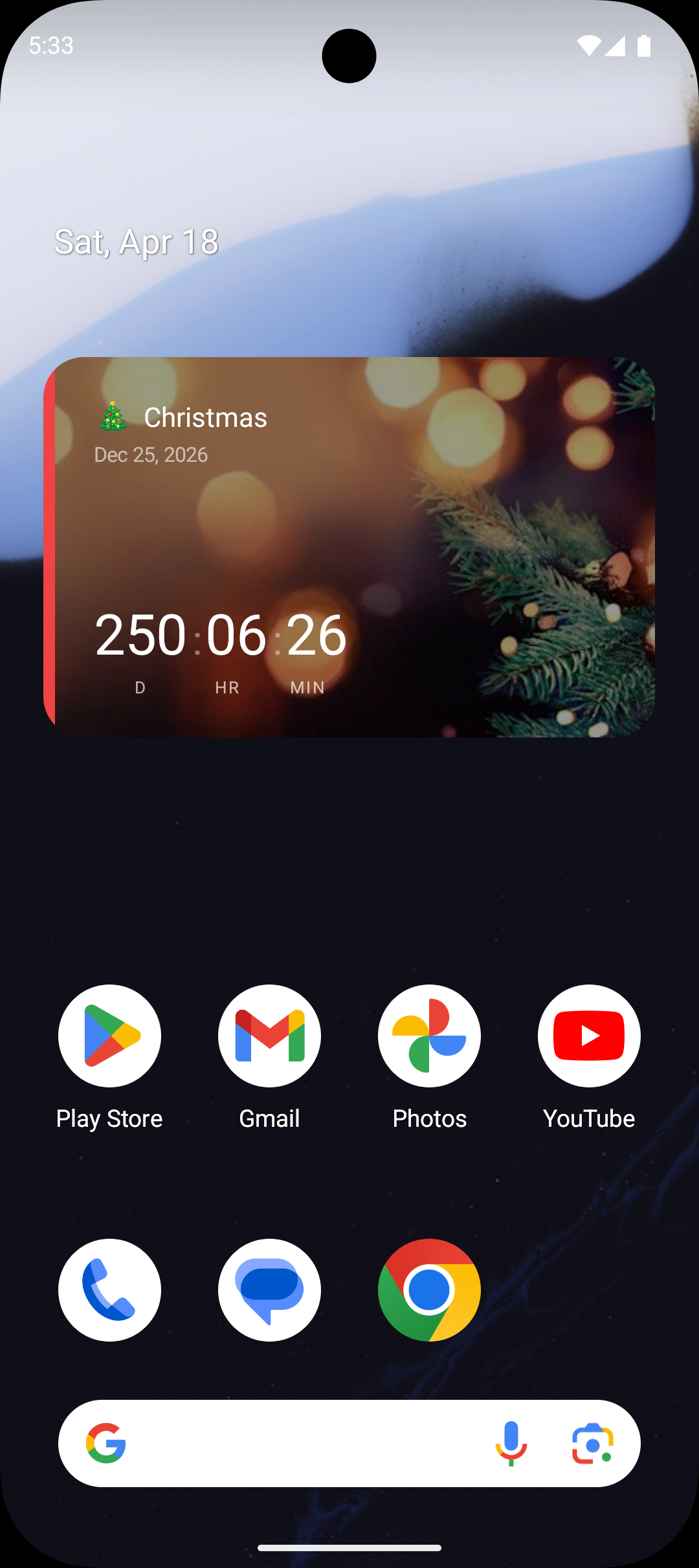
Save and verify on your home screen
Tap Save to apply your design choices. If you have a widget on your home screen displaying this countdown, it will update automatically to reflect your new design. Open your home screen to verify the countdown looks exactly how you want it.
Pro Tips
- ›Match your countdown accent color to the theme of the event — red for Valentine's Day, green for Christmas, school colors for graduation.
- ›Use minimalist card designs for home screen widgets and more detailed designs when browsing countdowns inside the app.
- ›Try the days-only unit configuration for a clean, uncluttered look on widgets.
- ›Progress tracking rings work especially well on the 2x2 widget size, while bars look better on the wider 4x2 widget.
- ›You can change the design of any countdown at any time without affecting the countdown date, reminders, or other settings.
Frequently Asked Questions
Are all 11 card designs free to use?+
Can different countdowns have different designs?+
Does changing the design affect my widget?+
Related Guides & Resources
Step-by-step guide to adding a countdown widget to your Android home screen. Works with Countdawns app. Takes under 2 minutes. Free.
Track countdown progress with rings, bars, waffle charts, and lines. See how far you have come and how much time remains. Step-by-step guide.
The only Android countdown app that lets you choose which time units to display. Show days only, add seconds, or pick any combination. Free.